
Documentation
Install the cTrader cBot
Install the cTrader cBot, fill `AccountCode` and `AccessKey`, then validate the WebSocket live state.
cTrader
Install the cTrader cBot
Install the cTrader cBot, fill `AccountCode` and `AccessKey`, then validate the WebSocket live state.
Step 1
Create account
Step 2
Connect broker
Step 3
Paste webhook
Delivery status
Received → Routing → ACK → Delivered
Goal
Install TheConnector in cTrader Automate and connect the cBot to the web workspace.
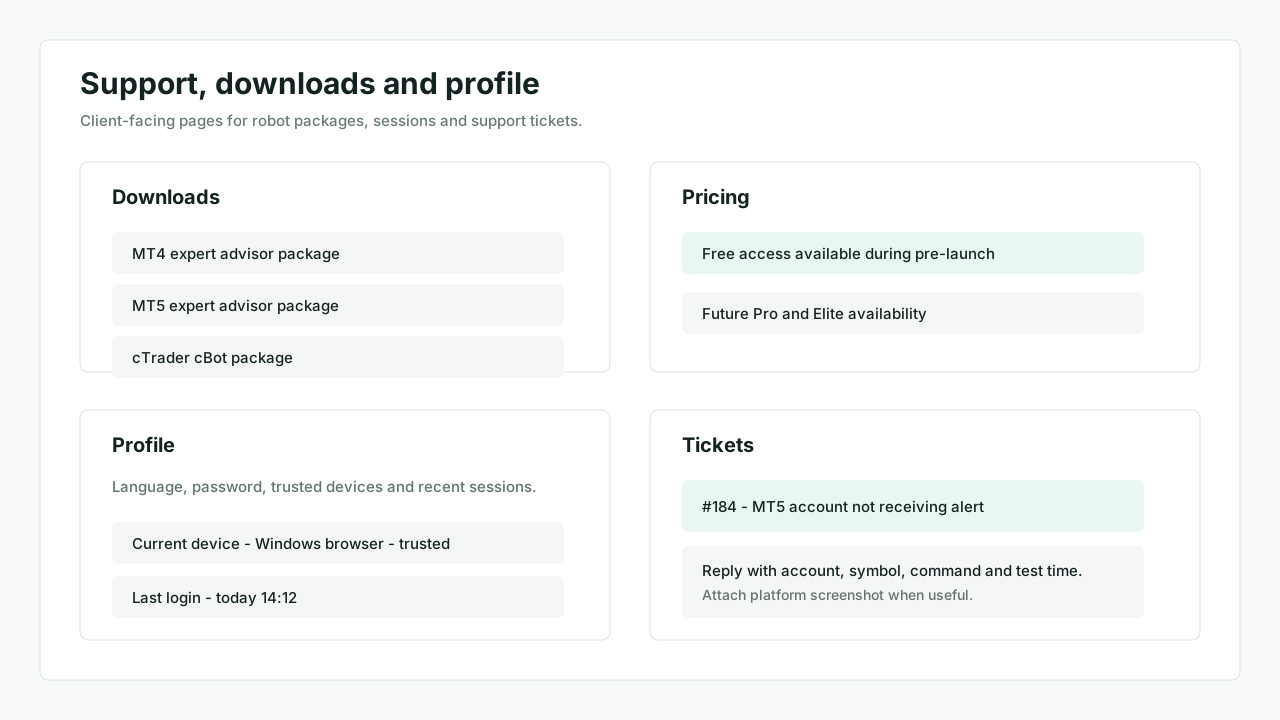
1. Download the cTrader package
Open Downloads.
- Download the cTrader package
- Keep the account details page open while installing
2. Import the cBot in cTrader Automate
- Open cTrader Automate
- Import or paste
TheConnector.cbot.cs - Build the cBot inside cTrader Automate
What to check in your interface
cTrader Automate editor
Check the cBot source and the successful build status.
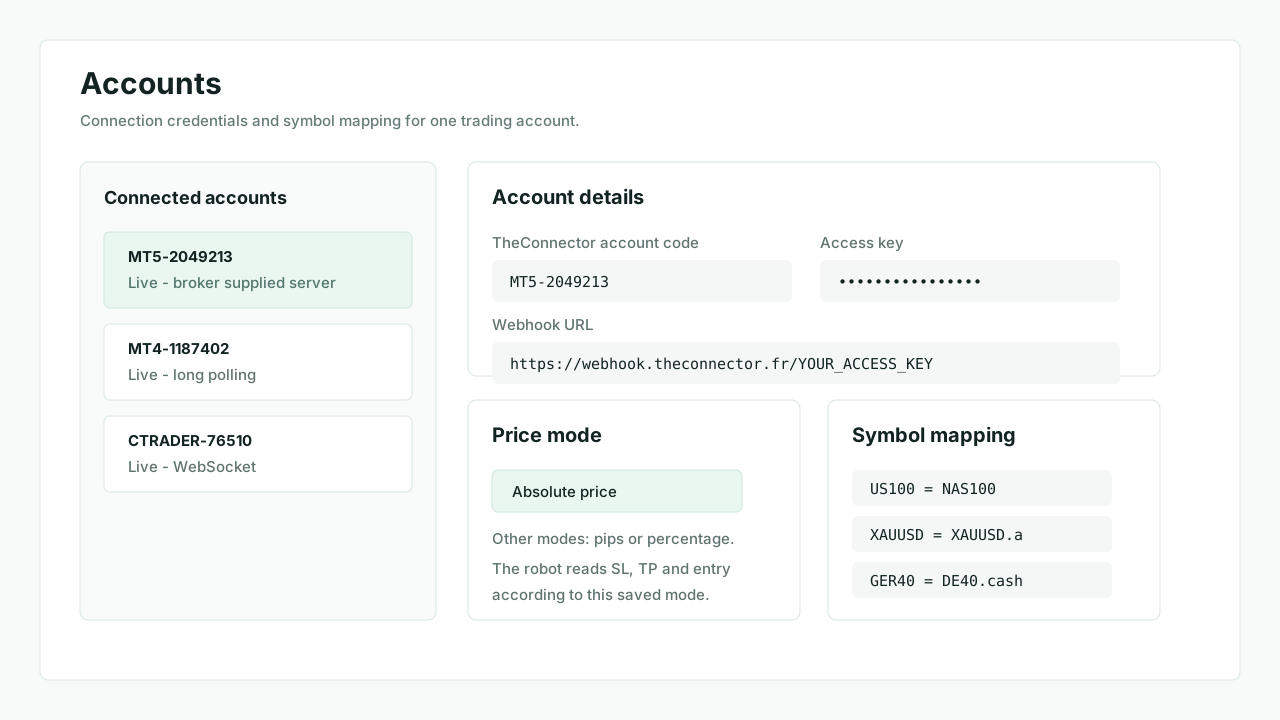
3. Retrieve the account credentials
From Accounts, copy:
AccountCodeAccessKey
4. Fill the cBot parameters
Fill only the parameters exposed by the current cTrader cBot:
AccountCodeAccessKey
The WebSocket endpoint is built into the cBot. Do not add broker-specific host or port values unless support explicitly provides a custom build.
5. Start and validate
- Start the cBot from cTrader Automate
- Confirm the account becomes
LiveinAccounts - Send a TradingView test alert after the live state is confirmed
What to check in your interface
cTrader live state
Check the cBot running and the web account marked as live.