
Install the robot on MT4
Install the MT4 expert advisor, fill `ACCOUNT_CODE` and `ROUTING_TOKEN`, then validate the account from the client workspace.
Install the robot on MT4
Install the MT4 expert advisor, fill `ACCOUNT_CODE` and `ROUTING_TOKEN`, then validate the account from the client workspace.
Goal
Install TheConnector on MetaTrader 4 and bring the account to a healthy live state.
1. Download the MT4 package
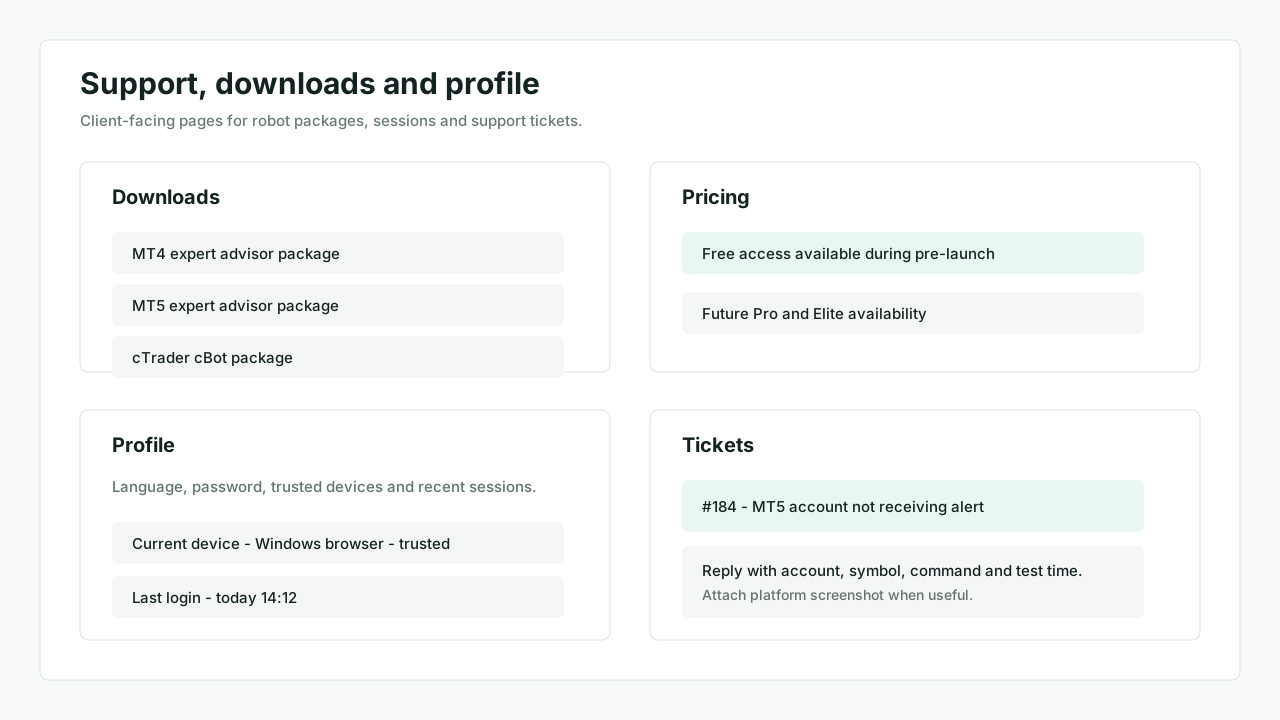
Open Downloads.
- Download the MT4 package
- Keep the account details page open while installing
2. Copy the files into MT4
- Open
File > Open Data Folder - Copy the expert advisor into
MQL4/Experts - Copy the required include files into
MQL4/Include - Restart MT4 or refresh the Navigator
MT4 data folder
Check MQL4/Experts and MQL4/Include.
3. Allow TheConnector network URL
MT4 uses WebRequest for the robot connection. In Tools > Options > Expert Advisors, add:
https://ws.theconnector.fr
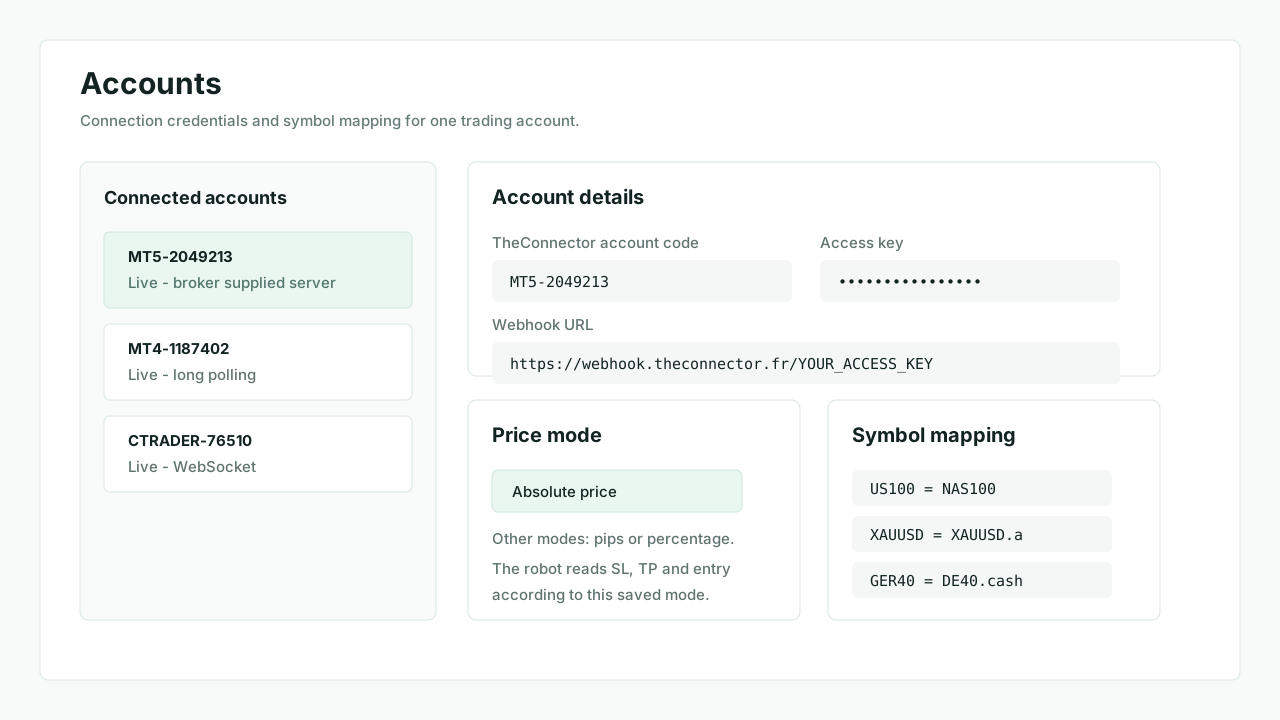
4. Retrieve the account credentials
From Accounts, copy:
ACCOUNT_CODEROUTING_TOKEN
5. Attach the EA to a chart
- Drag
TheConnectoronto one chart - Enable algo trading
- Allow the required Expert Advisor permissions
MT4 EA properties
Check the Common tab and the important permissions.
6. Fill the connection inputs
Fill only the inputs exposed by the current MT4 robot:
ACCOUNT_CODEROUTING_TOKEN
The TheConnector endpoint is built into the package. Do not add broker-specific host or port values unless support explicitly provides a custom build.
7. Read the panel on the chart
The panel should show the TheConnector account, trading account number, broker and live connection state.
MT4 panel
Check the panel on the chart with broker and live state.
8. Final validation
- The account becomes
LiveinAccounts Transactionsreceives a test alert if the current plan includes itOrdersor the robot panel confirms the first execution result