
Documentation
Status, support and recovery checks
Know where to check public service health, what to read first and when to open a ticket from the client side.
Opérations
Status, support and recovery checks
Know where to check public service health, what to read first and when to open a ticket from the client side.
Step 1
Create account
Step 2
Connect broker
Step 3
Paste webhook
Delivery status
Received → Routing → ACK → Delivered
Goal
Know which page to open first when you suspect a routing or execution issue.
1. Read the public status page
Open Status to see whether the platform reports a degraded state or maintenance window.
- A healthy status means you can continue with account-level checks
- A degraded status means you should wait for the posted update before retesting
- Maintenance windows appear there first
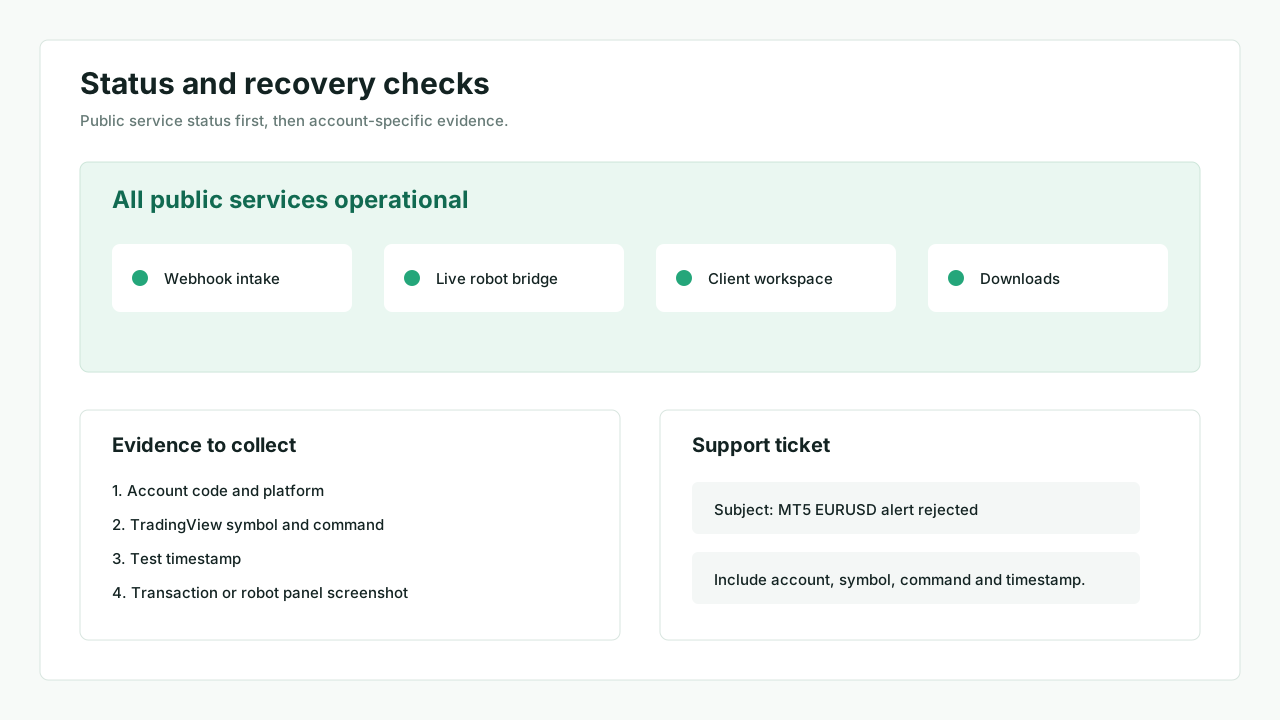
2. Use Transactions as the first technical trace
If the status page looks healthy, open Transactions.
- No transaction usually means the webhook never arrived
- A rejected transaction usually means the robot or broker rules returned an error
- A successful transaction tells you to continue with
Orders - If
Transactionsis locked on the free plan, useOrdersand the robot panel first
3. Use Orders and Analytics only after a transaction exists
Ordersconfirms whether an order is open, pending or closedAnalyticshelps you understand the result over time, not the first delivery issue
4. Open a ticket when the issue is account-specific
Use Tickets when:
- The webhook URL is correct
- The account is
Live - The robot is running
- You still see a repeated error or no execution
5. Keep useful evidence ready
Before opening a ticket, keep:
- The affected account code
- The platform: MT4, MT5 or cTrader
- The TradingView symbol and command used
- The approximate test time
- A screenshot of
Transactionsor the robot panel if relevant