
TheConnector user guides for TradingView, MT4, MT5 and cTrader
Step-by-step guides for novice users: configure TradingView alerts, use the client area and install the MT4, MT5 or cTrader robot.
Client workspace guide
Walk through Free access, accounts, symbol mapping, analytics, replication and support from the client workspace.
Goal
This guide shows the practical order to follow inside the client workspace after account creation.
Broker compatibility
TheConnector works with any broker that provides MT4, MT5 or cTrader, as long as the broker allows the robot or cBot to run and the platform can reach TheConnector over the network. Broker-specific symbol names, minimum volumes, stop distances and market hours still apply.
1. Start from Overview
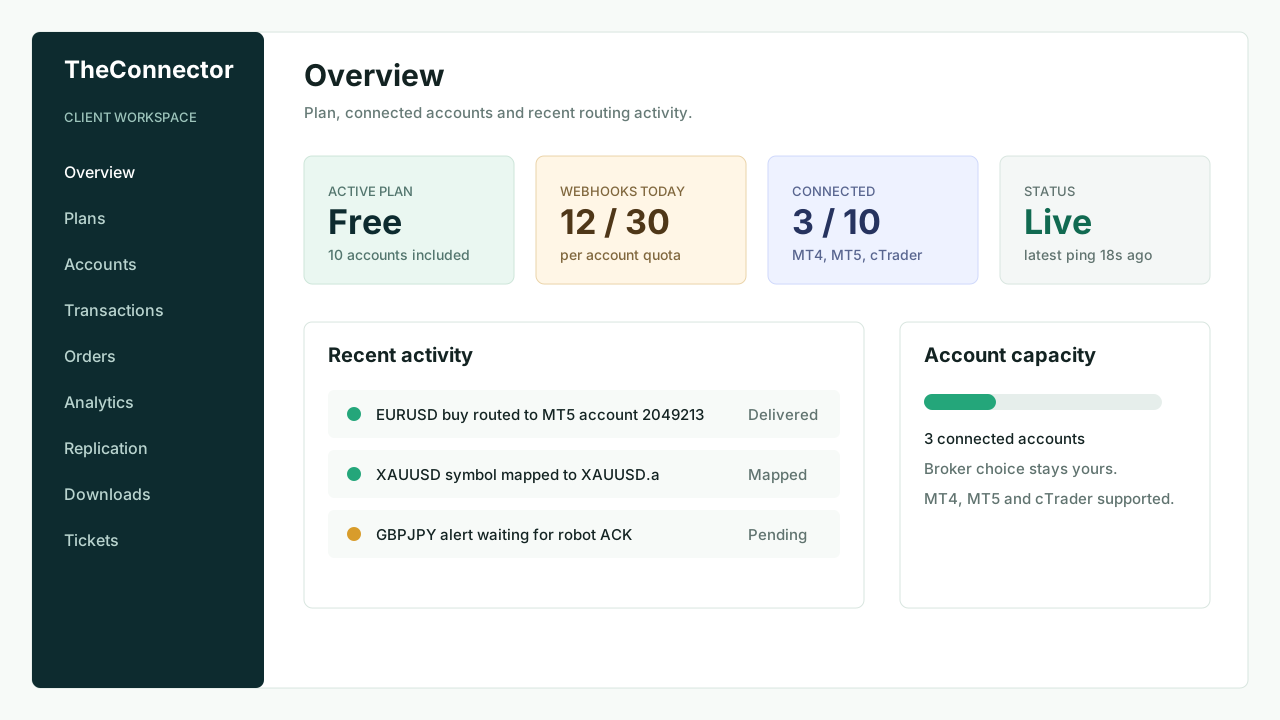
Open Overview first to confirm the active plan, the number of connected accounts and recent routing activity.
- The Free plan includes up to 10 MT4, MT5 or cTrader accounts
- The daily webhook quota is applied per account
- Recent activity helps confirm whether alerts are moving
2. Review account settings
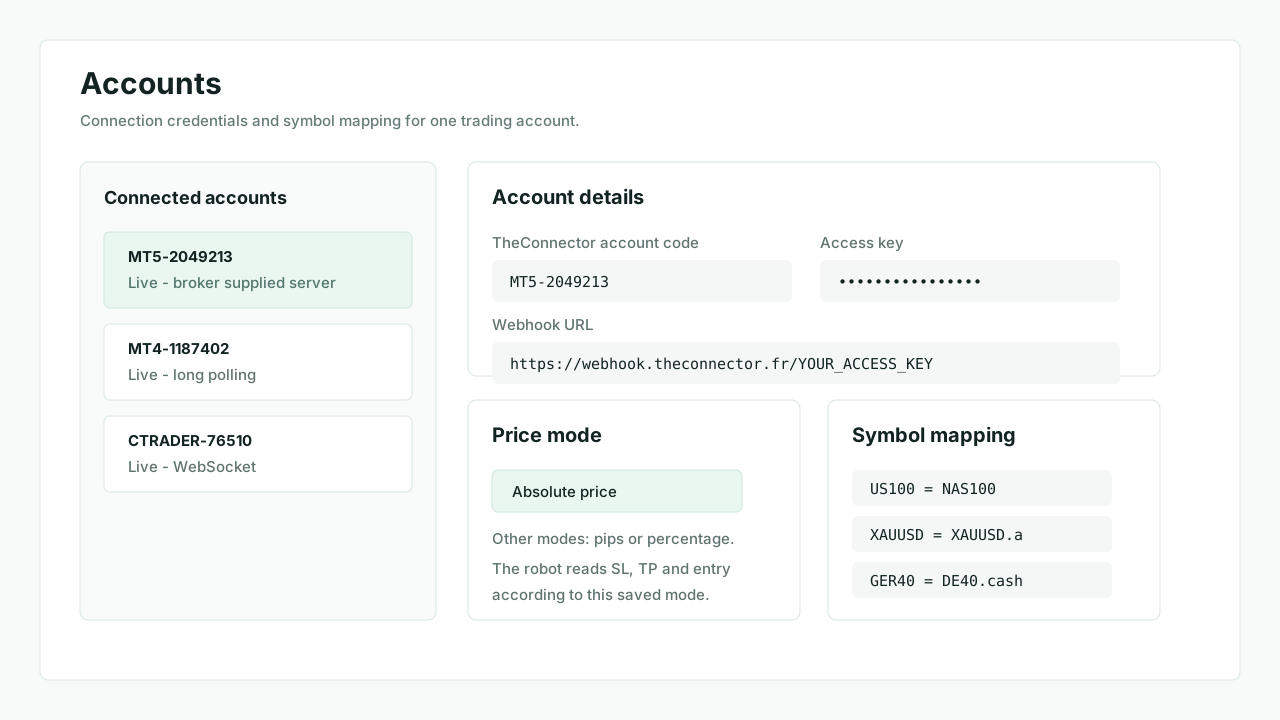
Open Accounts before creating TradingView alerts.
- Confirm the trading account number and broker name
- Confirm the account status is
Live - Copy the account code, access key and webhook URL
- Choose the price mode used for
sl,tpand pending orderprice - Add symbol mapping when TradingView and broker symbols differ
3. Validate delivery before execution analysis
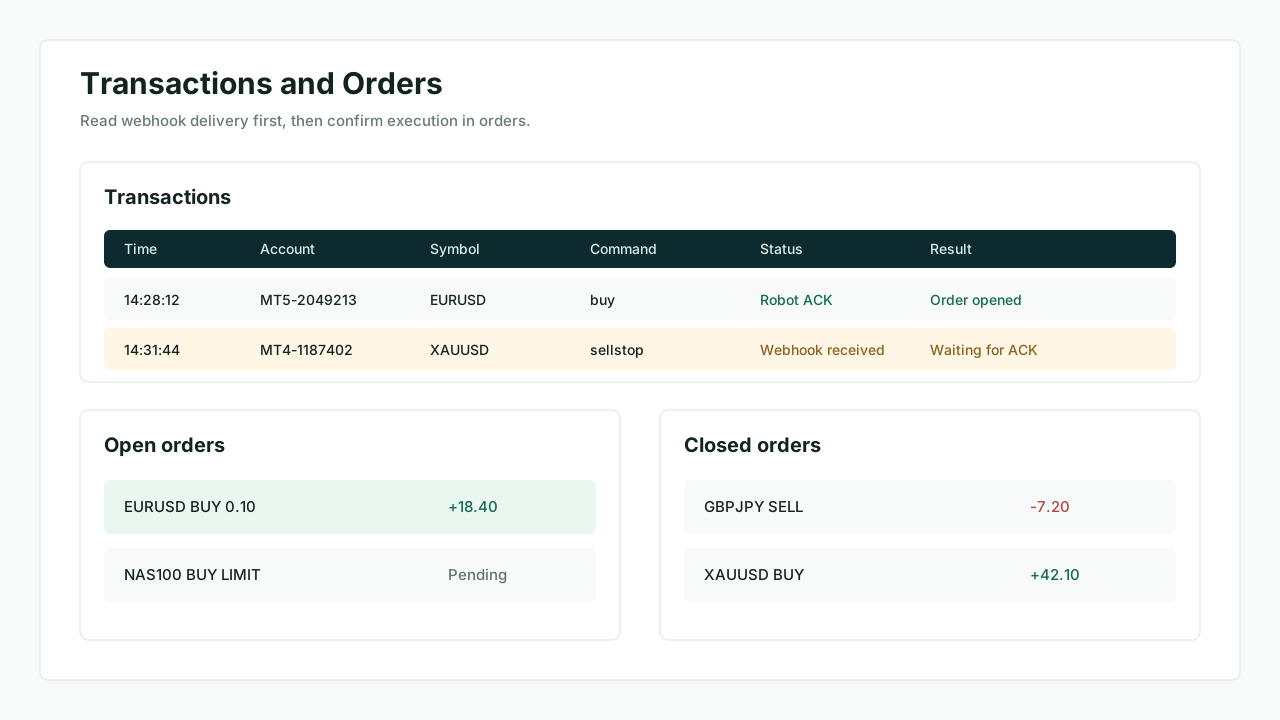
After the first alert, read Transactions before Orders when your plan exposes it.
Transactionsconfirms whether the webhook arrived- The robot acknowledgement confirms whether MT4, MT5 or cTrader received the command
Ordersconfirms whether the trade is open, pending, closed or rejected
4. Use analytics and replication after the route is healthy
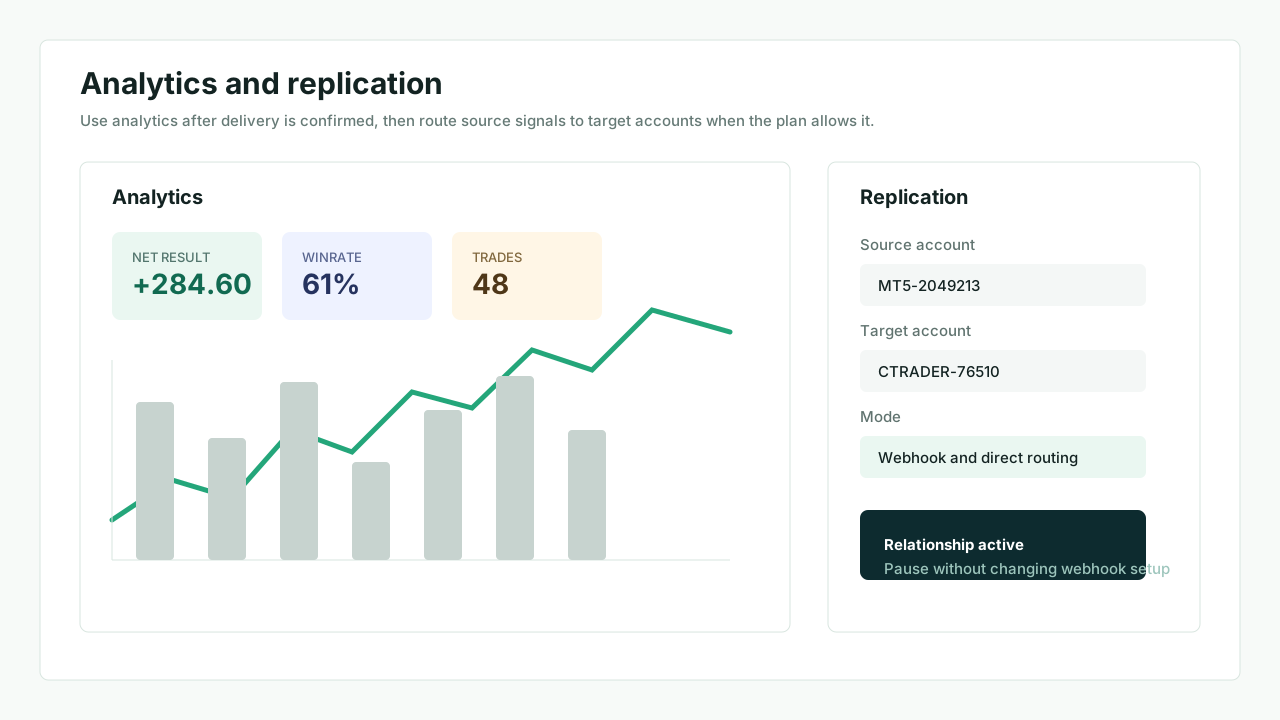
Use Analytics after orders exist. Use Replication only when the current plan includes it.
- Analytics explains the account result over time
- Replication routes a source account to selected target accounts
- Mapping lists can be reused when target broker symbols differ
- Pausing a replication route does not change the TradingView webhook URL
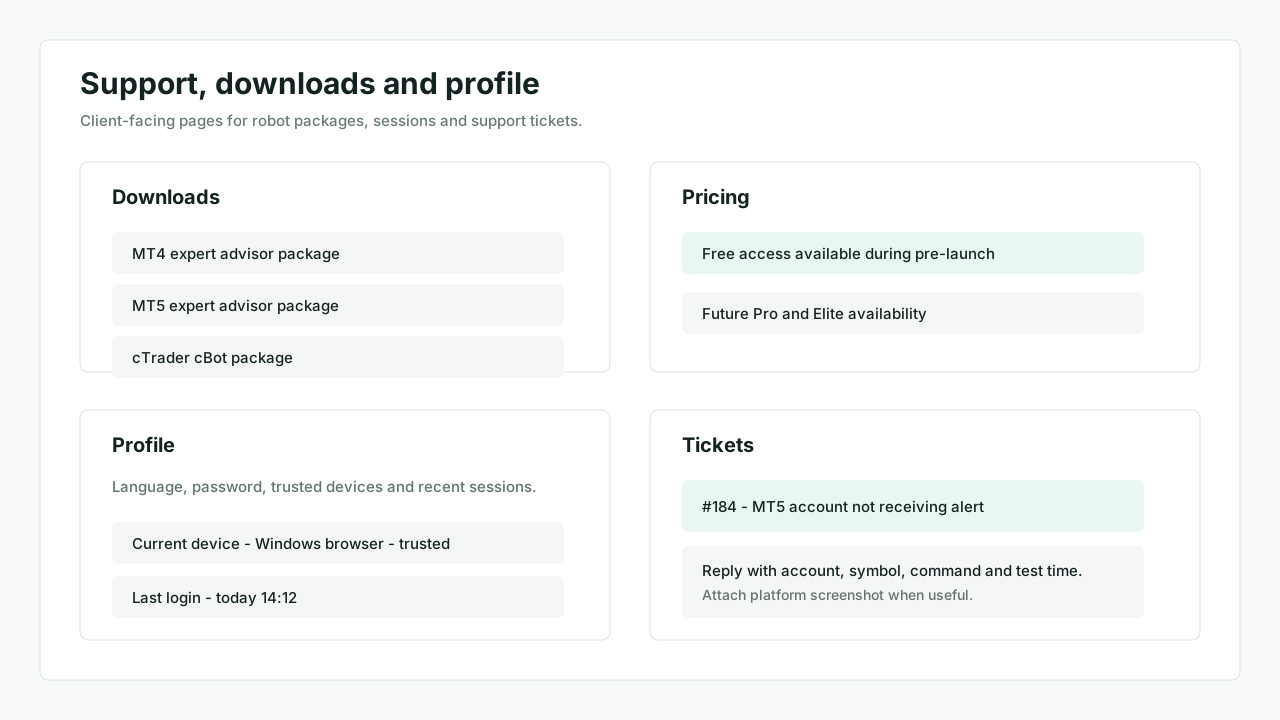
5. Use downloads, profile and tickets
- The pricing page explains Free access and future paid-plan availability
Downloadscontains MT4, MT5 and cTrader packagesProfilecontains language, password, trusted devices and sessionsTicketsis the right place for account-specific support
6. First checks when nothing moves
- Confirm the account is
Live - Confirm the robot is still running in MT4, MT5 or cTrader
- Confirm the webhook URL and access key are copied from the same account
- Confirm symbol mapping when TradingView and broker names differ
- Read
Transactionsbefore assuming the problem is inOrders